Native macOS app · Swift & SwiftUI · Version 2
Every ROG control. Zero runtimes.
Keyboard lighting, system vitals and display profiles for ASUS ROG laptops running macOS. Rebuilt from the core as a native SwiftUI app, with nothing running as root.
Lighting locked to Windows.Four zones, straight over USB.
The keyboard’s lighting controller speaks an undocumented protocol of 17-byte feature reports. The app sends a complete lighting state every time, and keeps only the newest one waiting, so dragging a colour picker never leaves the keyboard behind.
- Keyboard zonesColoured together or one by one4
- EffectsStatic, Breathing, Color Cycle, Rainbow, Strobe5
- TransactionHandshake, brightness, mode, set, apply17 bytes each
- Write queueLatest wins, so a colour drag never builds a backlog10 ms apart
Packets in the wrong place.Only the keyboard hears it.
Version 1 could send lighting packets to any ASUS USB device, including mice and docks. Now a small, tested rule picks the one Aura interface, and a shared lock stops the app and the command-line tool from talking over each other.
- 1ASUS vendor ID 0x0B05, with full-size feature reports
- 2Vendor usage pages first, then known product IDs
- 3Never mix two product IDs
- 4One lock, so the app and the CLI never interleave
Colours that never match.Six display profiles.
Profiles apply to every connected display and come back after sleep or when a display is plugged in. Gamma is left alone until you choose a profile, so Night Shift keeps working, and choosing Standard or quitting restores your calibration.
- Standard
- Vivid
- Eye Care
- Cinema
- FPS
- RTS / RPG
Each profile is computed from the display’s own ColorSync curve, so Standard is exactly what you had before.
Numbers you can’t trust.Only real readings.
Version 1 showed an estimated fan speed and placeholder battery values. Now every number comes from macOS, and a sensor that isn’t there says Not reported. Readings are only taken while the Dashboard or Status screen is open.
- CPU load and memorymacOS kernelLive
- CPU temperatureSMC, through VirtualSMCReported
- Battery health and cyclesAppleSmartBatteryReported
- Fan speedNo macOS driver reads this laptop’s fansNot reported
Keys that fired everywhere.Only the keys on the keyboard.
macOS tags every arrow and F-key with the function modifier, so the old key monitor acted on ordinary presses in other apps. Now the ROG key, Fn+↑, Fn+↓ and Fn+F11 are read straight from the controller, and everything else is left to macOS.
- ROG keyShow the window, next preset or light on and off0x38
- Fn+↑ and Fn+↓Backlight brightness, with an optional overlay0xC4 · 0xC5
- Fn+F11Puts the Mac to sleep0x6C
- ⌃⌥⌘ shortcutsOptional, and they work from any keyboardAny keyboard
See every screen.
Four screens in one native window. Scroll to see each one.
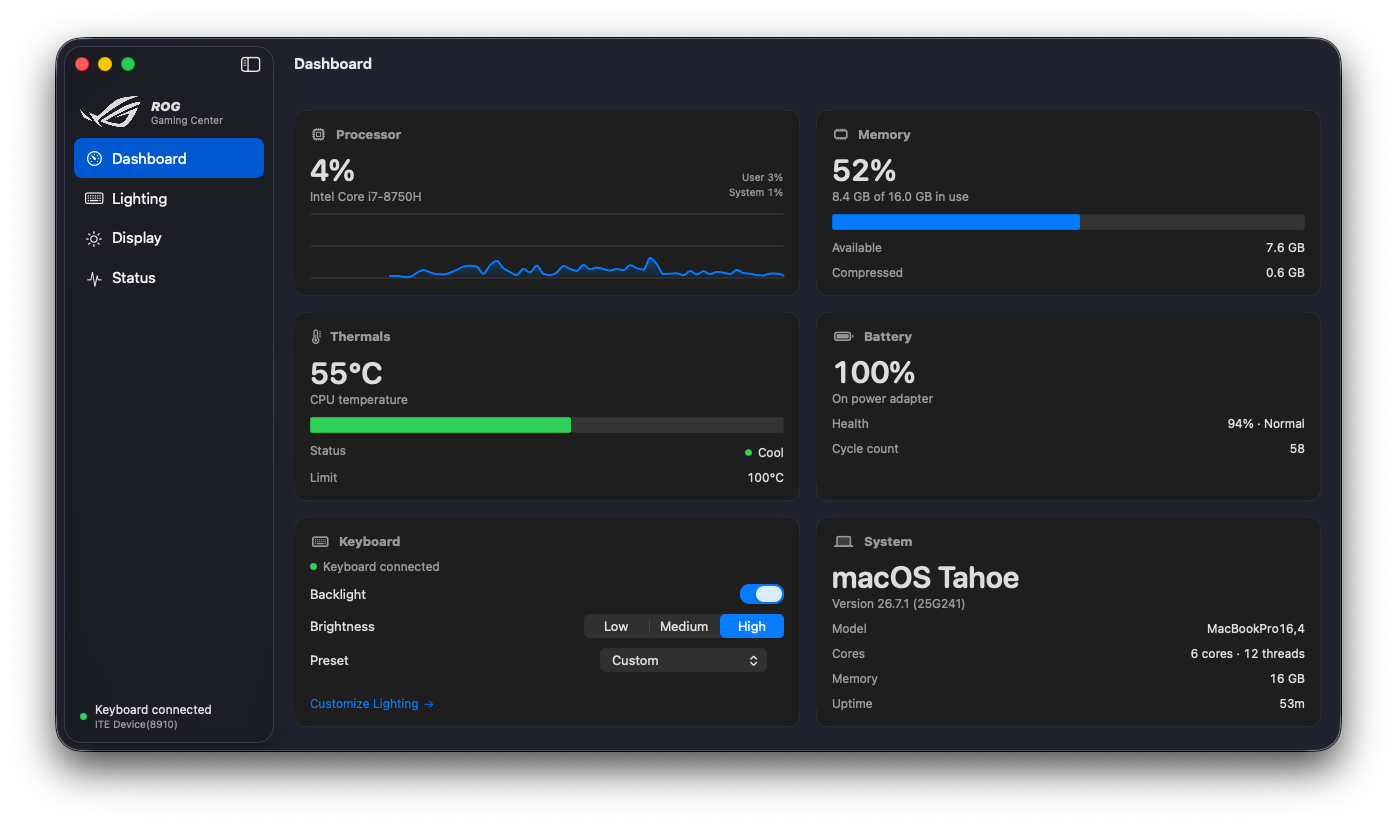
Dashboard
The machine at a glance.
CPU load with history, memory, CPU temperature with its status, battery charge, health and cycles, the system, and quick keyboard controls.
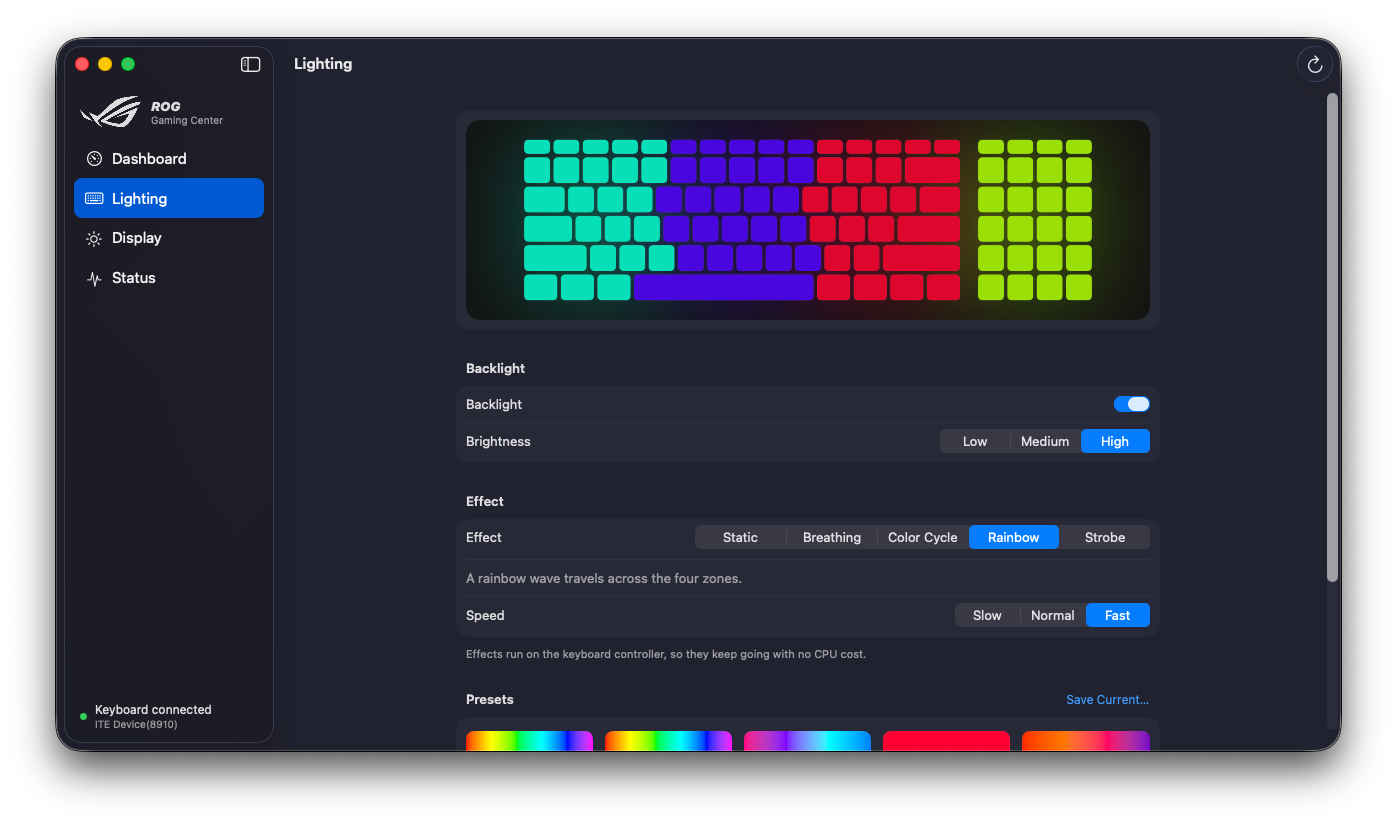
Lighting
See it before the keyboard does.
A live four-zone preview that matches what the hardware can do, five effects with speed, brightness, and built-in and saved presets.
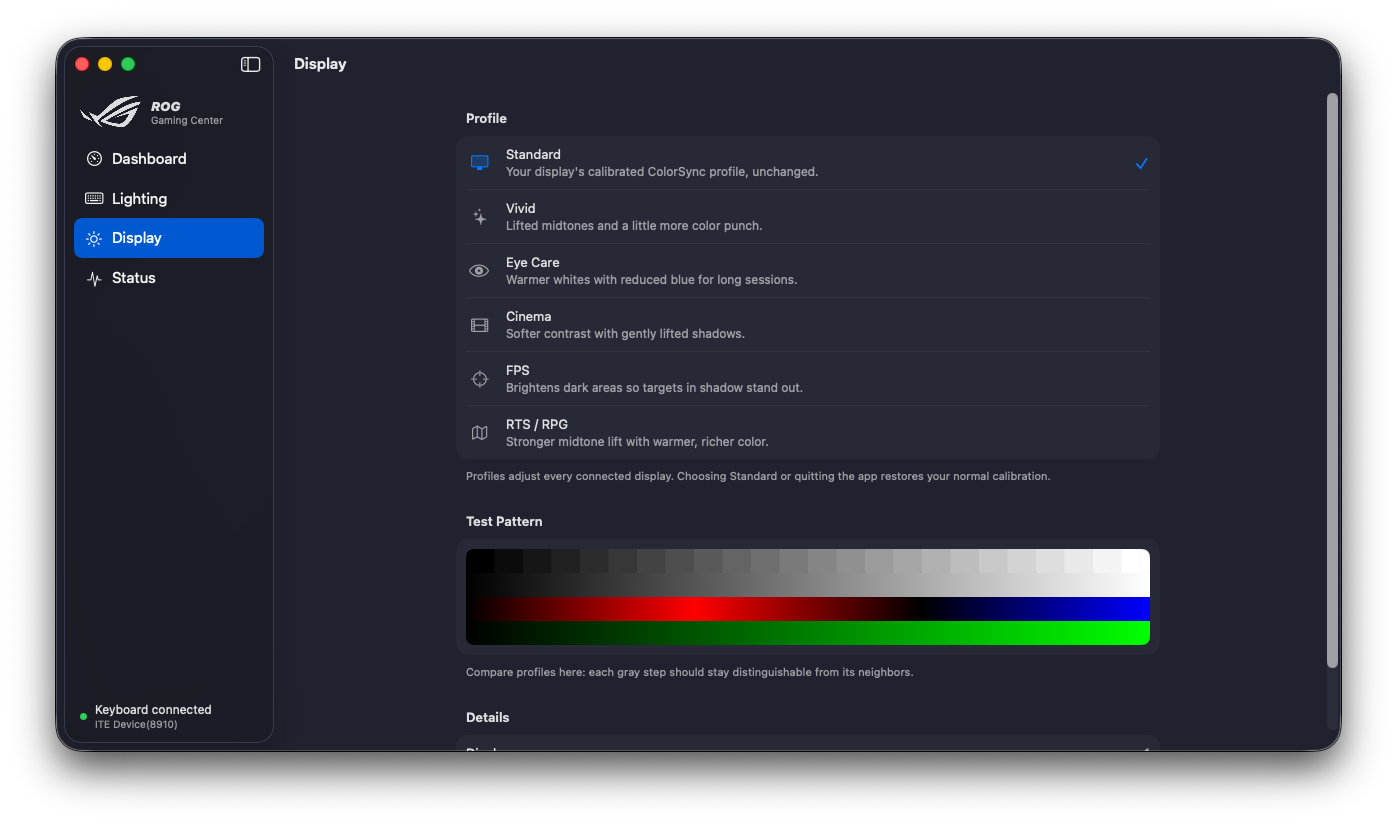
Display
Six ways to see the same screen.
Standard, Vivid, Eye Care, Cinema, FPS and RTS / RPG, with a test pattern to compare them: each grey step should stay distinct from its neighbours.
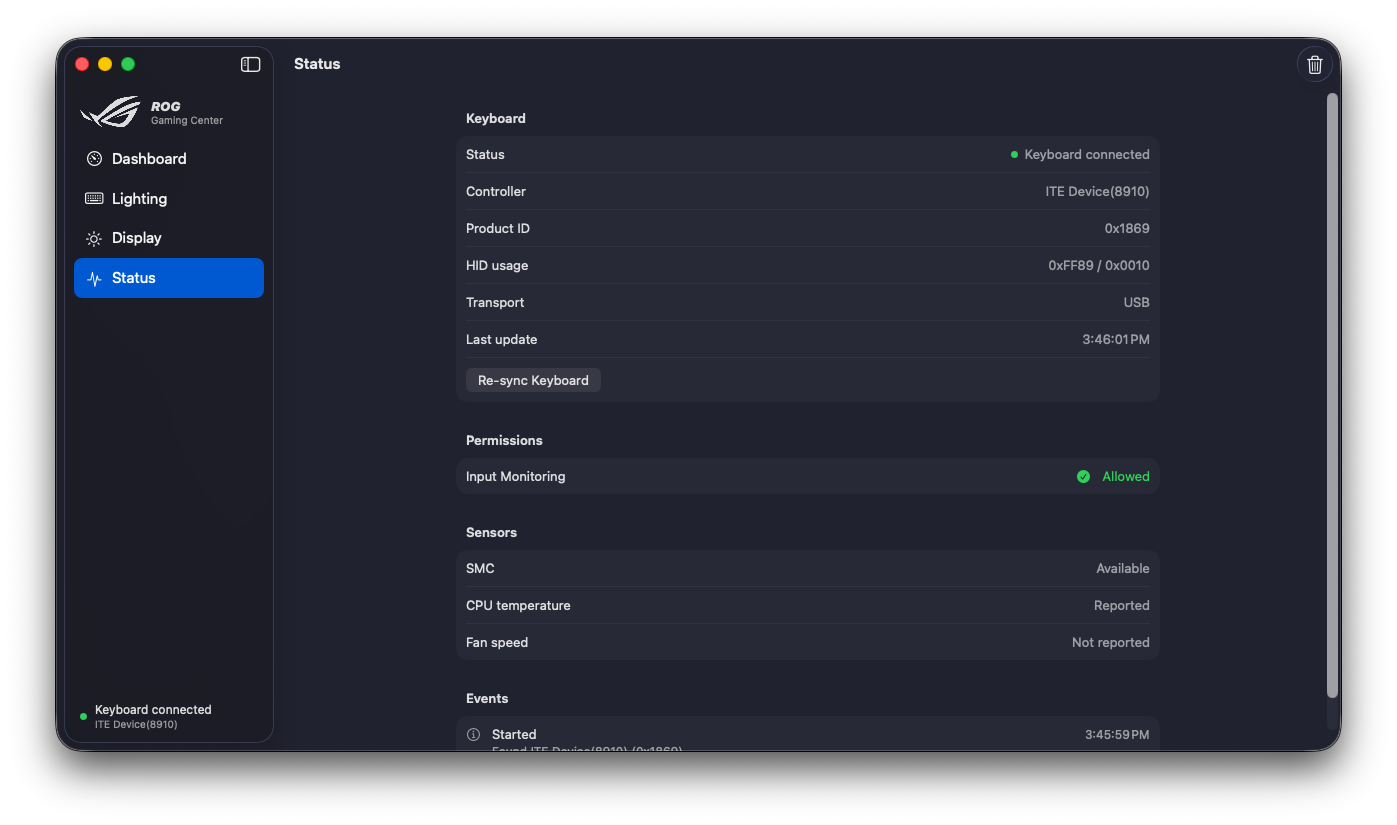
Status
When something’s wrong, it says so.
The keyboard controller and its product ID, the Input Monitoring permission, which sensors macOS reports, a re-sync button and an event log.
Close the window.It stays out of the way.
The everyday controls live in the menu bar, and everything else is in a standard Settings window, opened with ⌘,.
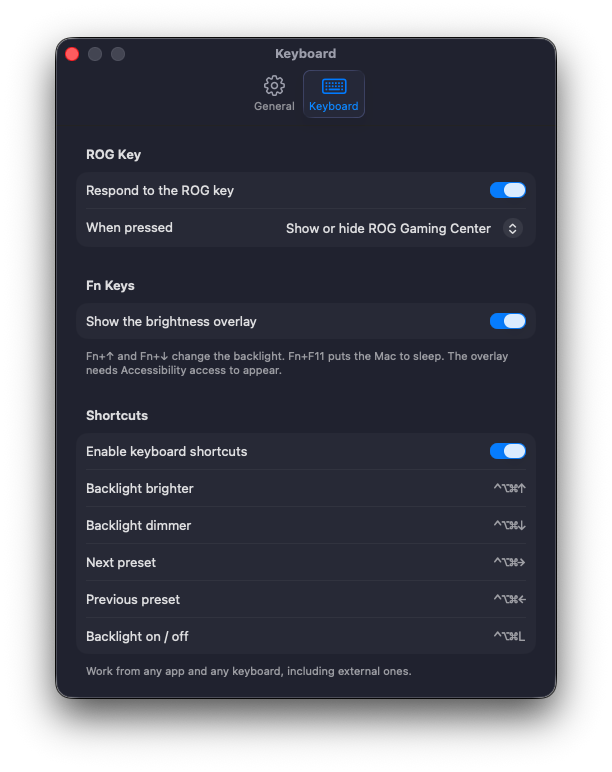
Settings · Keyboard
Your keys, your way.
Choose what the ROG key does, show a brightness overlay for Fn+↑ and Fn+↓, and turn on ⌃⌥⌘ shortcuts that work from any keyboard.
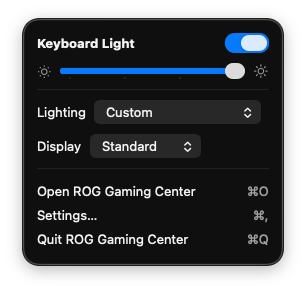
Menu bar
The everyday controls.
Light on or off, brightness, the lighting preset and the display profile, without opening the window.
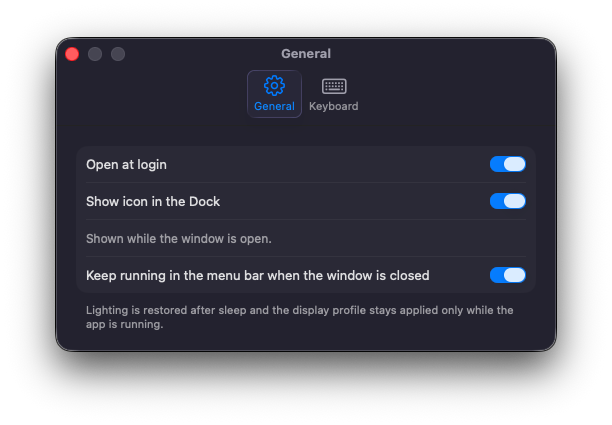
Settings · General
Runs quietly.
Open at login, hide the Dock icon and keep running in the menu bar. Lighting comes back after sleep.
Swift, in user space.What it doesn’t need.
No kexts are needed for lighting, nothing runs as root, and every reading comes from macOS.
- Electron
- Python
- Node.js
- libusb
- Root privileges
- Kexts for lighting
- Estimated readings
Four modules. Each one depends only on the layers below it.
- ROG Gaming CenterThe SwiftUI app, its menu bar panel and Settings.
- rogauracoreThe command-line tool, for scripts and diagnostics.
- AuraHIDThe only code that touches the keyboard controller.Hardware
- AuraCorePackets, effects, key decoding and display curves. No AppKit or IOKit.Unit-tested
At a glance
Rebuilt from the core.
- Swift modules
- 4
- A pure, unit-tested core, one transport that touches the hardware, the app and the CLI.
- Controller product IDs
- 10
- Known ASUS keyboard controllers. Lighting packets go only to the Aura one, never to other ASUS USB devices.
- Unit tests
- 34
- They cover packets, effects, key decoding, interface selection and display curves, and run on every push.
Keep exploring.
Tech Specs
Want the details?
Every setting, limit and component, grouped and searchable by section.
Learn moreAll projects
See more of the work.
Every case study, from firmware and hardware to internal tools.
Learn moreThe firmware behind it
OpenCore EFI Hackintosh Build
OpenCore UEFI Bootloader & ACPI Power-Gating
Learn more